The PINE64 PineTime is the cheapest truly open smartwatch you can buy: a $30-class nRF52832 wearable that ships running InfiniTime, the community firmware that gives you watchfaces, notifications, heart-rate and step tracking — with no vendor app and no lock-in [1][4]. Everything on its parts page is documented; this walkthrough is the hands-on half. In about an hour you'll go from cardboard box to an updated watch paired with your phone, and you'll know the one step everybody skips (firmware validation) that saves you doing the whole update twice.
No soldering, no tools, no prior embedded experience. If you can pair Bluetooth earbuds, you can set up a PineTime.
What you need
A PineTime (the sealed retail version — not the developer kit; more on that difference in the troubleshooting section)
The USB-A charging cradle and cable that ship in the box [1]
An Android phone for the main path (Gadgetbridge). Linux desktop users can follow along with ITD, iOS users with InfiniLink — same steps, different app [1][3]
About an hour, most of it charging
Curious how the PineTime compares to other open watches like the e-ink Watchy before you start? We cover that in open-source smartwatches compared.
Step 1: Unbox and inspect
Inside the box you'll find three things: the watch, a USB-A charging cradle, and a quick user guide [1][2]. Peel the protective film from the front and back of the watch — the face ships covered, and the film on the back matters because that's where the charging contacts live [2].
Turn the watch over and look at the caseback: the two spring contacts you see are how the cradle charges it — the PineTime has no charging port, no pogo pins sticking out, nothing to plug in [2]. The single physical button sits on the left side of the case and is the only button you'll ever press [1].
Step 2: Charge it first
The battery may have spent weeks in a warehouse, so give it a proper first charge:
Seat the watch in its cradle so the caseback contacts line up with the cradle's pins — embedded magnets snap it into place when it's correctly aligned [2].
Plug the cradle's USB cable into a 5 V 1 A source — a laptop USB port is ideal [2].
The watch should boot instantly and show its charging status on screen [2]. If the screen stays dark, reseat the watch: the magnetic snap is firm but alignment is the one thing people get wrong.
Leave it until the on-screen battery indicator shows full, then lift it out [2].
There's no on/off switch to worry about — more on the button's real behaviour in the next step.
Step 3: Power on and learn the four screens
Hold the side button for a few seconds until the Pine64 logo appears [1]. If nothing happens, back to the cradle — a deeply drained PineTime won't boot until it has charge [1]. New units ship from the factory with InfiniTime already installed [4][5], so what boots is the real thing.
The watchface you land on will probably show 1 January 1970 — that's not a bug, the clock just hasn't been set yet [1]. Before fixing that, learn the four areas of the InfiniTime UI, because every instruction below uses them [1]:
Watchface (home): time, date, steps, heart-rate and battery at a glance.
Swipe down: your most recent notifications.
Swipe up: the apps drawer — stopwatch, music control, steps, heart-rate, timer, games and more, two pages of six.
Swipe right: quick settings — brightness, torch, silent mode and the cogwheel that opens Settings.
Two button facts worth knowing now: you cannot switch the watch off (it's designed to run continuously), and holding the button about 8 seconds reboots it if anything ever misbehaves [1].
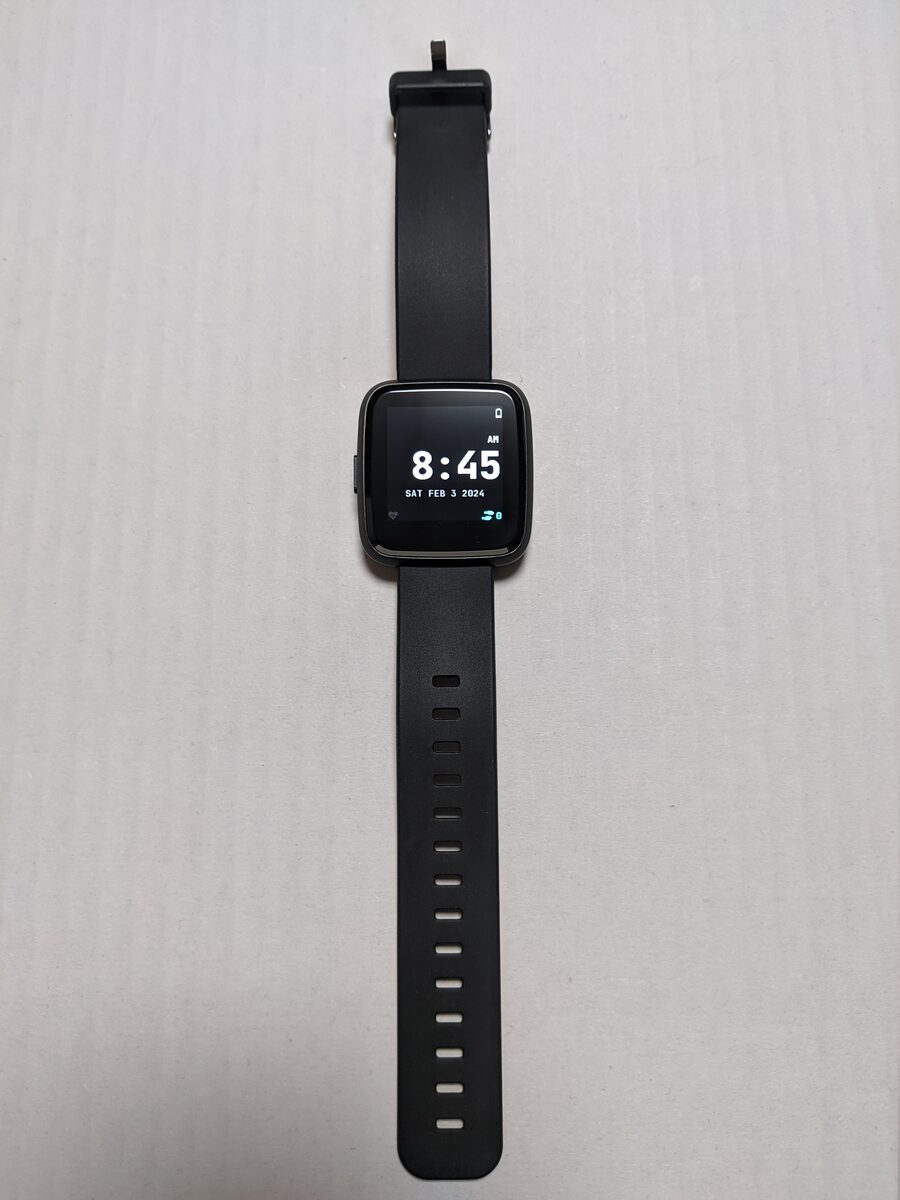
Photo: Unnerving duck, CC0, via Wikimedia Commons — running InfiniTime 1.12.0 with the date already set.
Step 4: Set the date and time
Three ways to fix the 1970 problem, easiest first [1]:
On the watch (InfiniTime 1.7 and newer): swipe right for quick settings, tap the cogwheel, then use Set date and Set time.
Automatically once you pair a companion app in the next step — the app pushes the phone's time on connect. Note InfiniTime doesn't handle daylight-saving changes by itself, so a paired watch stays right and an unpaired one drifts [1].
In a desktop Chromium browser with the WebBLE Watch web app — handy if you're skipping companion apps entirely [1].
Step 5: Pair a companion app (Gadgetbridge on Android)
The PineTime works standalone as a watch, but a companion app is what delivers notifications, music control, call alerts and automatic time [1][6]. On Android the open-source choice is Gadgetbridge — no vendor account, no cloud [3].
Install Gadgetbridge (via F-Droid or its official site) and grant it the Bluetooth and notification permissions it asks for.
Wake the PineTime's screen (press the button once) so it's advertising.
In Gadgetbridge, tap + (or menu → Connect new device) and wait for the scan to finish — your PineTime appears in the list [1][7].
Tap it. Gadgetbridge pairs and connects; the watchface gains a Bluetooth icon, and the clock jumps to the correct time [1][7].
Gadgetbridge on PineTime supports notifications, accepting/rejecting calls, music control, battery level, find-my-watch and manual heart-rate measurements; sleep tracking isn't supported by InfiniTime at the time of writing [6]. On other platforms: ITD (with its itgui graphical front-end) on Linux desktops, InfiniLink on iOS, and Amazfish or Siglo on Linux phones [1][3].
Step 6: Update InfiniTime over the air
Firmware updates on a sealed PineTime go over Bluetooth — no cables, no opening the case [1]. You'll download a DFU file (the OTA update package) and send it from the companion app:
Check your current version: quick settings → cogwheel → Firmware [1].
On a computer, open the InfiniTime releases page and download the DFU package of the newest release — the file named
pinetime-mcuboot-app-dfu-x.x.x.zip[1][5]. Transfer it to your phone.In your phone's file manager, open that
.zipwith Gadgetbridge's firmware installer, read the warning, and tap Install [1][7].Keep phone and watch close and wait — both show a progress bar. When the transfer finishes the watch reboots into the new version [1][7].
Now the step everybody skips: validate. InfiniTime deliberately runs a new firmware unvalidated, so a bad update rolls back instead of bricking the watch. Until you validate, the next reboot reverts you to the old version. To validate: swipe right → cogwheel → Firmware → Validate [1][4].
A safety note for tinkerers: this OTA flow is the only safe update path on a sealed PineTime like the retail one. Flashing unknown or experimental firmware on a sealed unit can brick it near-permanently, because there's no wired access to rescue it — wired SWD flashing with an ARM debug probe is a developer-kit-only activity [4].
Step 7: Make it yours
With the boring parts done, customise:
Change the watchface: Settings → Watch face — InfiniTime ships several, including the default digital face, an analog face and PineTimeStyle [1], and recent releases have added more (1.16 added a pride-flag face and revamped the terminal face [5]). Long-pressing the watchface also opens face options on current versions [5].
Tune the display: Settings → Display timeout and Wake-up mode (button only, single tap, double tap or raise-wrist) [1].
Set your step goal and pick 12/24-hour time under Settings [1].
Small comforts: hourly chimes, shake-to-wake calibration and a brightness boost live in quick settings and Settings [1].
The strap is a standard 20 mm fit, so swapping bands is a two-minute, no-tools job with any third-party 20 mm strap [4].
Troubleshooting
Watch won't boot. Charge it first — a drained PineTime won't respond to the button until it has power [1].
Screen shows garbage. This happens after unplugging mid-boot; restart the watch by holding the button ~8 seconds until the pine-cone logo appears [1][4].
Bluetooth keeps dropping. InfiniTime versions before 1.6 had a known BLE bug that lost connectivity after hours; updating (Step 6) fixes it. On an old version, the workaround is the same 8-second restart [1][4].
The update "didn't stick" — version went backwards after reboot. You skipped validation. Just validate as described in Step 6 [1][4].
Charging seems flaky. Reseat the watch on its cradle — the magnets should snap it firmly; check that the caseback contacts and cradle pins are lined up and clean [2].
Sealed vs developer kit. The retail PineTime is sealed (no caseback access). The developer kit leaves the back open for wired SWD flashing and is the one to buy if you plan to write firmware; for everything in this guide the sealed watch is all you need [4].
Stuck? The PineTime community runs a single bridged chatroom on Matrix, Discord, Telegram and IRC — linked from the PINE64 PineTime wiki page [4].
Where to go next
Full specs, buying links and project links: the PineTime parts page.
The firmware itself: InfiniTime — open firmware for the PineTime, our project page for the software you just installed.
Want an open watch with an e-ink screen you program in Arduino? See Watchy: the open-source ESP32 e-ink smartwatch — our most-visited project, and the complete opposite philosophy to the PineTime.
More of a tinkerer? Our T-Watch 2020 getting-started guide teaches Arduino watchfaces on the LilyGo T-Watch, the ESP32 sibling in this comparison.
Deciding between the two? Our open-source smartwatch comparison lines up the PineTime, Watchy and LilyGo T-Watch side by side.
And if the hacking itself is what drew you here, our best open-source smartwatch to hack on guide picks a winner outright — and widens the field with the Sensor Watch and Bangle.js 2.
Sources: [1] InfiniTime official user documentation, docs.infinitime.io (retrieved 2026-11-10). [2] PINE64 PineTime Quick Start Guide (official PDF, wiki.pine64.org, retrieved 2026-11-10). [3] PINE64 PineTime wiki — companion apps (wiki.pine64.org/wiki/PineTime, retrieved 2026-11-10). [4] PINE64 PineTime FAQ (wiki.pine64.org/wiki/PineTime_FAQ, retrieved 2026-11-10). [5] InfiniTime releases page, github.com/InfiniTimeOrg/InfiniTime/releases (1.16.1 current at retrieval, 2026-11-10). [6] Gadgetbridge PineTime support page, gadgetbridge.org (retrieved 2026-11-10). [7] InfiniTime OTA-with-Gadgetbridge guide, InfiniTime repo doc/gettingStarted/ota-gadgetbridge.md (retrieved 2026-11-10).