Muse Gadgets: give Meta's AI agent an ESP32 or Raspberry Pi body
Meta's open-source Muse Gadget SDK turns an off-the-shelf ESP32 board or a Raspberry Pi into a device for Muse, Meta's personal AI agent: a talking avatar on a round AMOLED, status on e-paper, or a Pi that runs commands.
What it is
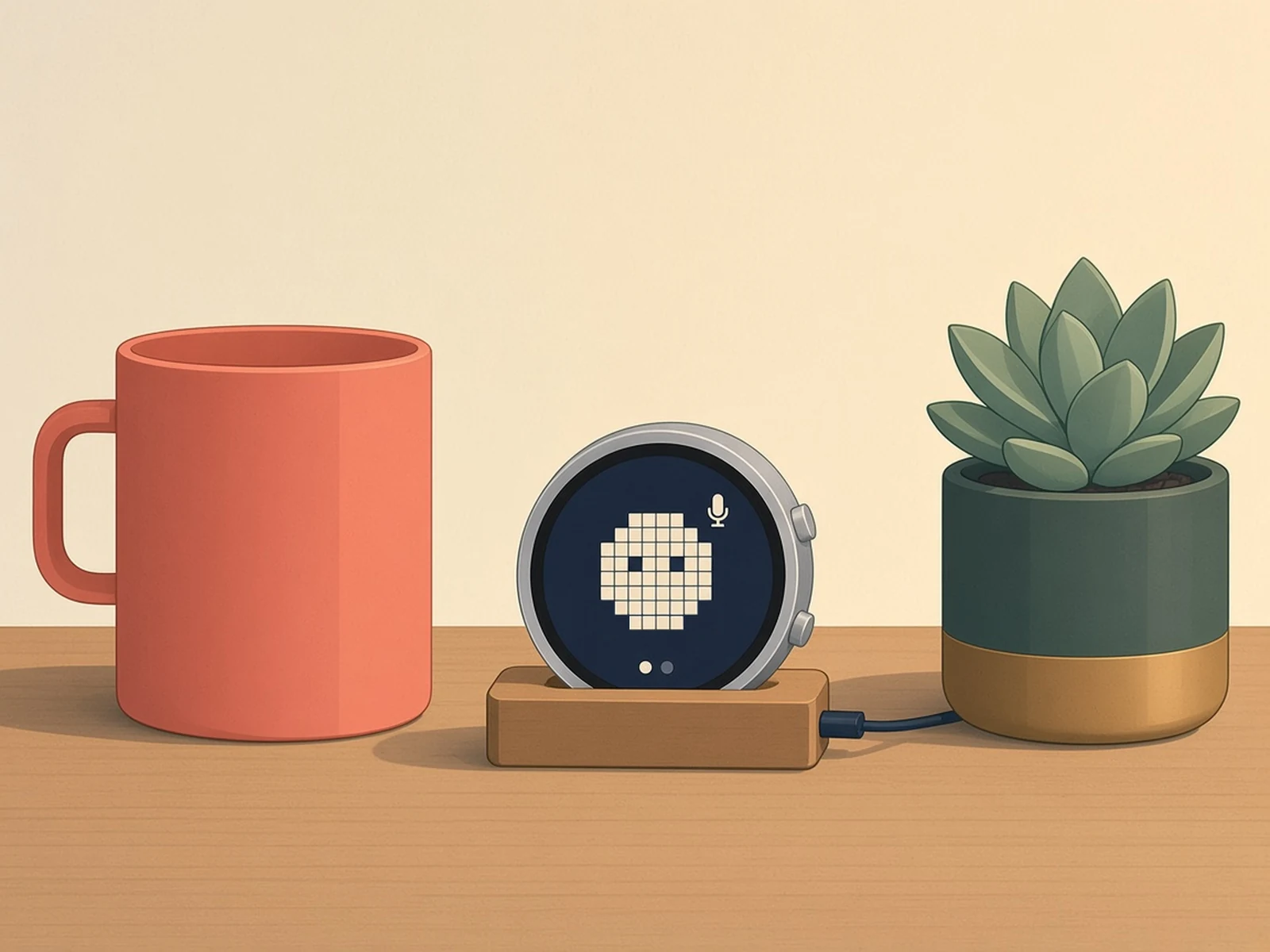
Meta's open-source firmware and SDK for building your own Muse gadget: flash an ESP32 board to give Meta's AI agent a screen, a mic and buttons, or install it on a Raspberry Pi so Muse can run commands there.
What you need
- Waveshare ESP32-S3-Touch-AMOLED-1.75C or M5Stack StickS3, ESP32-C5-DevKitC-1, reTerminal Sticky and many more
- USB data cable
- Raspberry Pi 4 Model B optional, for the Linux SDK
- The Muse app (iOS/Android) and an SDK token from gadgets.muse.ai
How hard
Intermediate. No soldering for the listed boards: you either use the web flasher, let Muse Code build and flash it, or install ESP-IDF v6.0.1 yourself and run idf.py build. Pairing takes a token, Developer mode in the Muse app and a button press on the device.
Photos
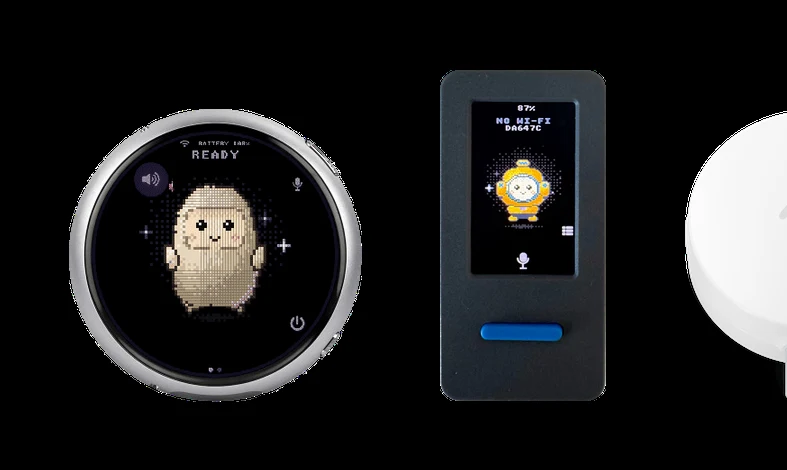
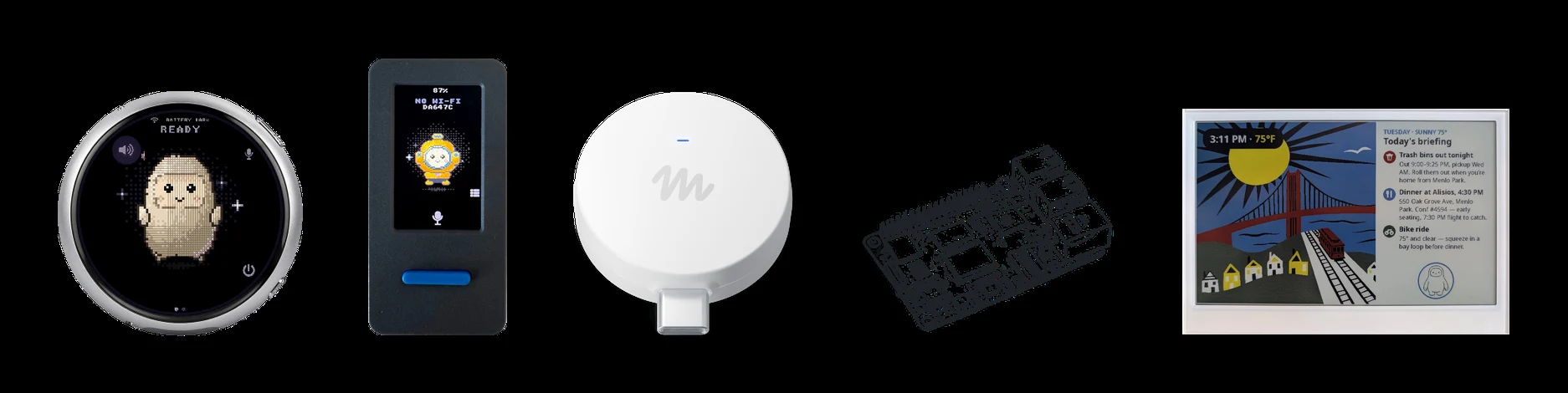
Photos: facebookincubator/muse-gadget-sdk
Key Facts
- SDKs: ESP32 Device SDK (ESP-IDF v6.0.1) and Linux Device SDK
- Quickest start: ESP32-C5-DevKitC-1 (status light + BOOT button)
- Full UI boards include Waveshare ESP32-S3-Touch-AMOLED-1.75C and M5Stack StickS3
- New Oct 19: experimental Seeed reTerminal Sticky e-paper profile (PR #214)
- Linux: a Bluetooth Raspberry Pi such as the Raspberry Pi 4 Model B or Raspberry Pi Zero 2 W
- Needs: SDK token from gadgets.muse.ai + Muse app Developer mode
- License: Apache-2.0 (a few third-party files keep their own licenses)
About This Project
Muse Gadgets is Meta's open-source kit for building your own hardware for Muse, its personal AI agent. Meta released it on October 2, 2026 as two device SDKs under Apache-2.0: ESP32 firmware and a Linux SDK. On an ESP32, the firmware connects the board to Muse over your home Wi-Fi. Depending on the board you get a status light, a status screen, or the full on-screen UI with an animated avatar, push-to-talk and settings. The README's quickest start is the ESP32-C5-DevKitC-1, which works as-is with its built-in status light and BOOT button. Full-UI boards include the round Waveshare ESP32-S3-Touch-AMOLED-1.75C, the M5Stack StickS3 and the Espressif ESP32-S3-BOX-3, and e-paper boards such as the Seeed reTerminal E1001 show status and black-and-white images. Seeed's experimental reTerminal Sticky profile was merged on October 19 (pull request #214): a 3.97-inch portrait e-paper UI with touch, voice notes through its PDM mic, battery gauge, SD card and an SHT40 sensor, with text replies because the board has no speaker. You build with ESP-IDF v6.0.1 (other versions aren't supported), let Meta's Muse Code agent build and flash it from the repo's AGENTS.md, or use the repo's Chrome/Edge web flasher. The Linux SDK turns a Raspberry Pi 4 Model B, a Raspberry Pi Zero 2 W or another Pi from the README's list (or any Linux box with Bluetooth LE) into a gadget that Muse can use to run shell commands, read and write files and report health, and your own scripts can push messages to Muse with musegadget send-user-msg. Every gadget needs an SDK token from gadgets.muse.ai and pairs through the Muse app's Developer mode. The README is upfront that community gadgets have no manufacturer verification, so pair on a network you trust, and on Linux Muse gets the same rights as the account you install it for, sudo included. Community ports are already showing up, such as raullenchai/esp32-thinks (a multi-model voice assistant built on the SDK) and wupsbr/waveshare-muse-gadget-sdk for more Waveshare round displays. If you like this, compare it with our XiaoZhi AI voice chatbot page.
Source & Attribution
Parts Needed
- A supported ESP32 board (the README's quickest start is the ESP32-C5-DevKitC-1)
- A USB data cable
- A Mac or Linux computer, or Chrome/Edge for the web flasher
- The Muse app and an SDK token from gadgets.muse.ai
Steps
- 1
Get a token
Create an SDK token at gadgets.muse.ai (Account > SDK tokens) and read the Gadget SDK Terms. Every gadget needs one to pair, even ones you build for yourself.
- 2
Pick a route
Easiest: the repo's web flasher in Chrome or Edge, which asks for your token after installing. Or let Muse Code build and flash from the esp32/ folder. Or install ESP-IDF v6.0.1 yourself (no other version is supported).
- 3
Build and flash
Doing it yourself: set the token in idf.py menuconfig, run idf.py build (ESP32-C5-DevKitC-1 by default) or tools/board.sh <board> build for other boards, then idf.py -p <port> flash monitor. If it can't connect, hold BOOT, tap RESET, release BOOT and retry.
- 4
Pair
When the status light breathes orange, turn on Settings > Devices > Developer mode in the Muse app and add the device (it shows up as MuseGadget-XXXXXX). When the light breathes blue, press BOOT to confirm. Green means connected.
- 5
Or use a Pi
On a Raspberry Pi with Bluetooth, download linux/install.sh, read it, and run bash install.sh --sdk-token <token>. Pair from the Muse app within 10 minutes. Install it for an account without sudo if you don't want Muse to have sudo.
Bill of Materials
Parts list
3 parts · 3 linked
Heads up: some Buy links are affiliate links. If you buy through one, MCU Atlas may earn a small commission at no extra cost to you. It never changes which parts we list. How this works



Not included: A Mac or Linux computer for flashing (or Chrome/Edge for the web flasher), The Muse app on iOS or Android, A Muse SDK token from gadgets.muse.ai
Related Projects